

What powers this Handheld Console?
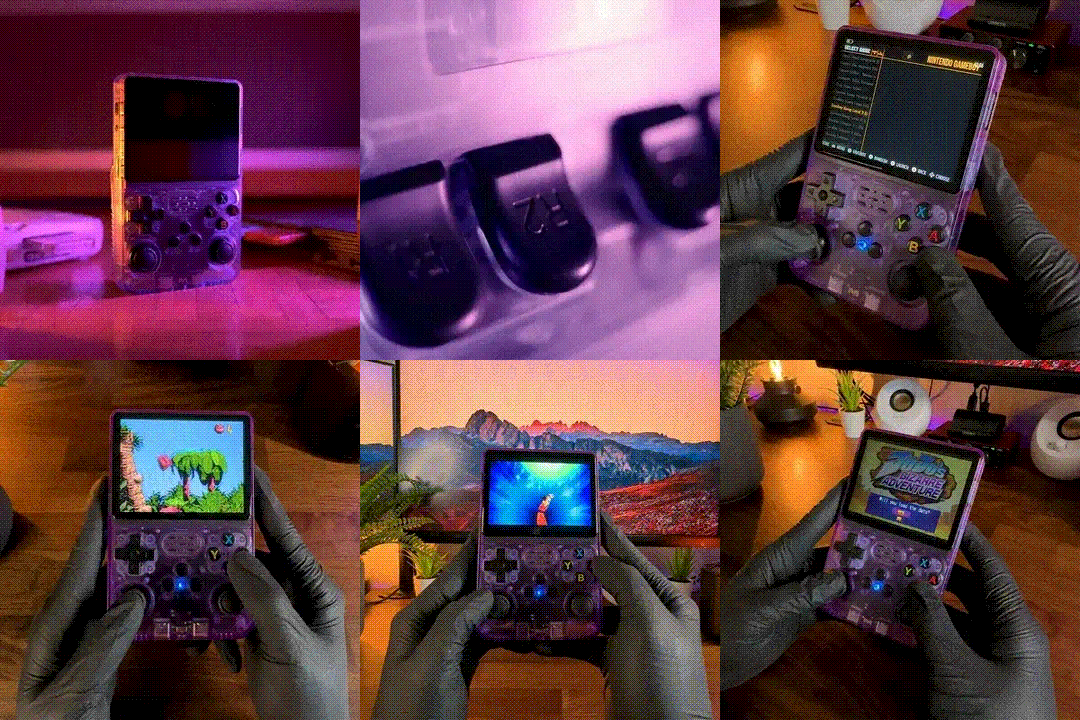
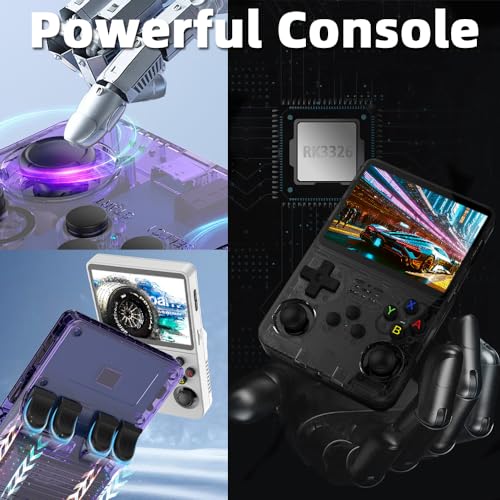
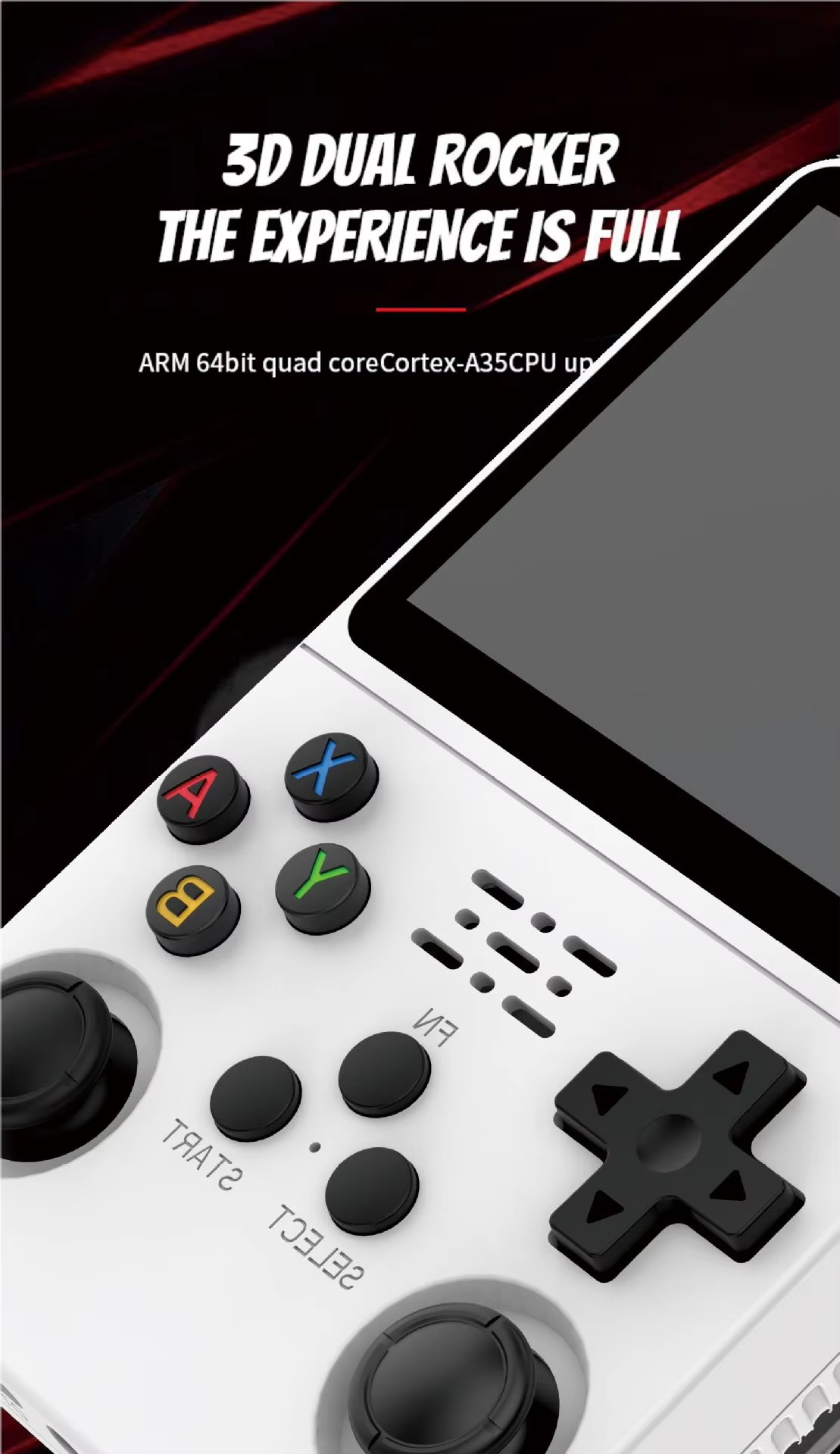
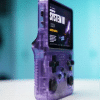
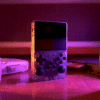
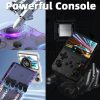
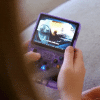
The R36S handheld console is powered by the a 64-bit quad-core ARM Cortex-A35 processor clocked up to 1.5GHz. It’s paired with a Mali-G31 MP2 GPU, which supports OpenGL ES 3.2 and handles retro gaming graphics quite smoothly
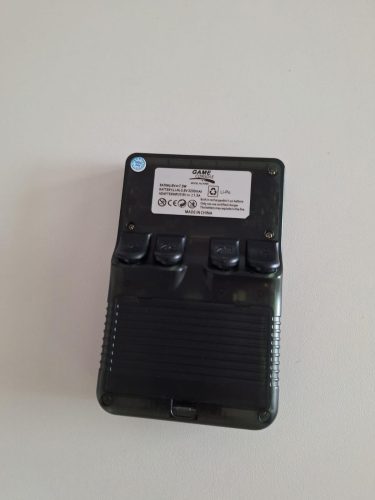
The R36S handheld console is fueled by a 3,200–3,500mAh rechargeable lithium battery, depending on the model variant. This battery provides up to 6–8 hours of gameplay on a full charge, making it ideal for long commutes or retro gaming marathons.
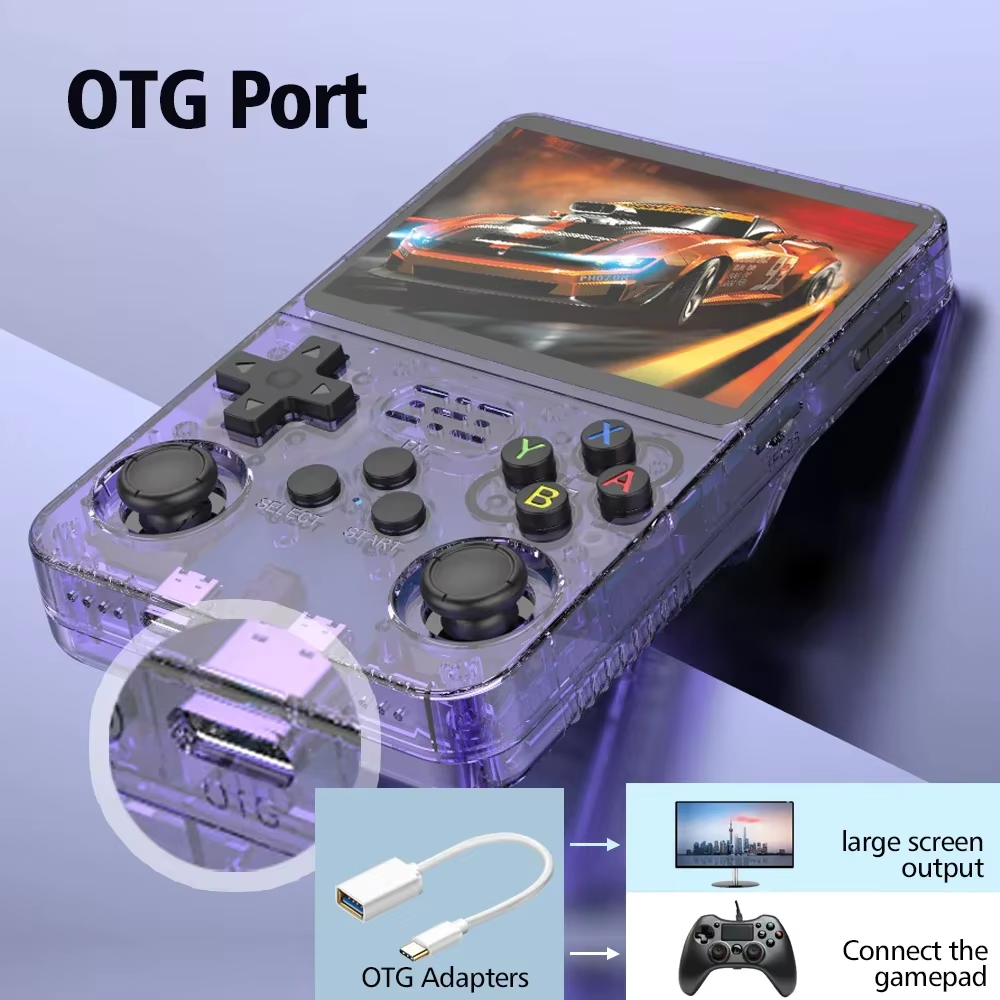
It charges via USB-C, and many models include dual USB-C ports—one for charging and one for OTG accessories like Wi-Fi dongles or USB controllers. The efficient RK3326 ARM Cortex-A35 processor and 3.5-inch IPS screen help balance performance with battery life, so you get smooth emulation without draining power too quickly.
";}i:2;a:2:{s:23:"accordion_content_title";s:24:" Dual SD Slots Explained";s:29:"accordion_content_description";s:842:"
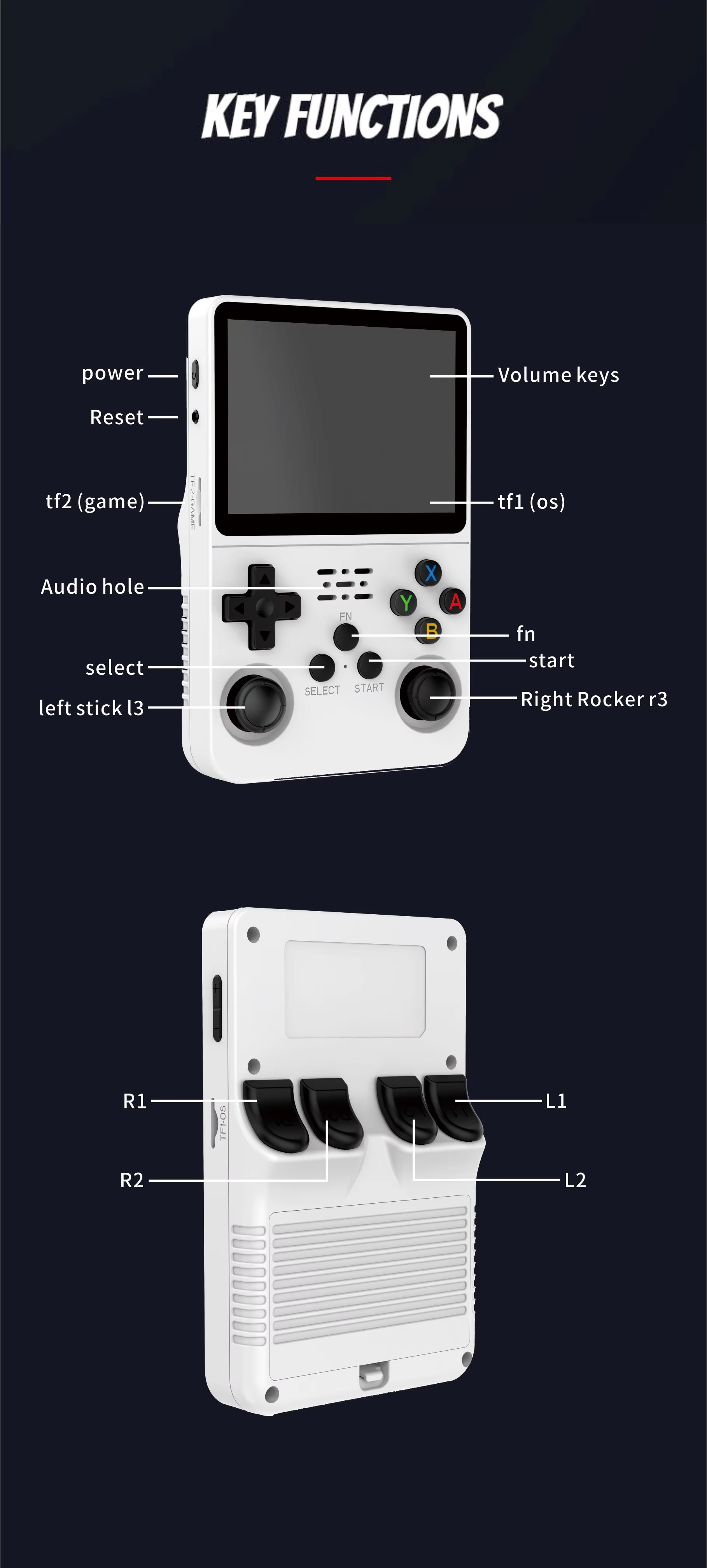
The R36S features two microSD card slots, giving you flexibility in how you manage storage:
- Slot 1 (TF1): Typically used for the operating system (ArkOS). A 64GB card here is common and works well for system files and light ROMs.
- Slot 2 (TF2): Dedicated to game ROMs and media. This slot supports cards up to 256GB, and in practice, even 512GB cards have been reported to work without issues.
This dual-slot setup lets you separate system and game data, making it easier to update firmware or swap game libraries. Just make sure to use high-quality branded cards (like SanDisk or Samsung) to avoid performance hiccups or data corruption.
Does R36s has Wifi?
The R36S does not have built-in Wi-Fi, but yes—you can connect to Wi-Fi using the included OTG adapter and a compatible USB Wi-Fi dongle.
Here’s how it works:
📶 Wi-Fi via OTG on R36S
- Plug in a USB Wi-Fi dongle using the OTG adapter.
- Navigate to Settings > Network > Wi-Fi (this may vary slightly depending on your firmware like ArkOS).
- If the dongle is supported, you’ll see a list of available networks. Use the shoulder buttons to select and connect.
- If it shows “WiFi: down” or nothing appears, your dongle might not be supported.
✅ Recommended Dongles
- TP-Link TL-WN725N (v2)
- Realtek RTL8188FTV-based dongles (often cheap and widely used)
Some community builds of ArkOS already include drivers for these. If not, you can install them manually—this guide walks you through it with a precompiled driver and installer.
How to Update ArkOS on R36S?
🧰 What You’ll Need
- Your R36S console
- A USB Wi-Fi dongle or an Android smartphone with USB tethering
- The OTG adapter that came with your R36S
- A stable internet connection
🪜 Method 1: Using a USB Wi-Fi Dongle
- Connect the Wi-Fi Dongle
Plug it into the R36S using the OTG adapter. - Power On and Access Network Settings
Go toOptions > Network > Enable Wi-Fi. - Connect to Wi-Fi
Select your network and enter the password using the virtual keyboard. - Run the Update
Navigate toOptions > Update.
TypeOKwhen prompted and press Start to begin. - Wait for Completion
The system will download and install updates, then reboot automatically.
📱 Method 2: Using Android USB Tethering (No Dongle Needed)
- Connect Your Phone to R36S via OTG Cable
Use the OTG port (not the charging port). - Enable USB Tethering on Your Phone
Go toSettings > Network & Internet > Hotspot & Tethering > USB Tethering. - Verify Internet Access on R36S
You should see a connection in the Network menu. - Proceed with Update
Go toOptions > Update, typeOK, and confirm.
🛠️ After the Update
- If games don’t show up, go to
Options > Advanced > Switch to SD2 for ROMs. - You can verify the update by checking
Options > About.
For a visual walkthrough, check out this step-by-step video tutorial that shows the process in real time using your phone.
How to Add More Games to Your R36S?
🧰 What You’ll Need
- A computer with a microSD card reader
- Your R36S microSD card(s)
- ROM files (legally obtained)
- A file manager (like Windows Explorer or Finder)
🪜 Step-by-Step Instructions
- Power Off and Remove SD Card
Turn off your R36S and remove the second microSD card (TF2) used for game storage. - Insert SD Card into Your Computer
Use a card reader or built-in slot to access the SD card on your PC or Mac. - Locate the ROM Folders
Navigate to theromsdirectory. You’ll see folders likeGBA,SNES,PS1,MAME, etc. - Download ROMs from Trusted Sources
Choose ROMs that match the folder names. For example,.gbafiles go into theGBAfolder. - Copy ROMs into the Correct Folders
Drag and drop your downloaded ROMs into the appropriate folders. - Eject the SD Card Safely
Always eject the card properly to avoid corruption. - Insert the Card Back into the R36S
Power on your device. The new games should appear in the menu automatically.
🌐 Categorized ROM Download Websites
⚠️ Always ensure you own the original game before downloading ROMs. Stick to public domain or abandonware titles to stay on the safe side.
🟦 Multi-Console ROM Libraries
- RomsPedia: Massive library (280K+ ROMs), categorized by console
- EmuParadise: Classic site with full ROM sets and emulator tools
- Emulator Games: Clean interface, abandonware-focused
🟥 Nintendo-Focused
- Vimm’s Lair: NES, SNES, N64, GameCube—well-organized and trusted
- The NES Files: NES-specific with manuals and box art
🟪 PlayStation & Sega
- RomsMania: PS1, PS2, Sega Genesis, Dreamcast
- HexROM: Fast downloads, no ads, supports over 100 consoles
🟨 Arcade & DOS Games
- Internet Archive: Public domain arcade and DOS games
- Classic Reload: Play DOS games directly in your browser
Does it support RetroArch NetPlay?
The R36S partially support RetroArch NetPlay, but with a few caveats:
✅ What Works
- Ad-hoc NetPlay (local multiplayer over Wi-Fi) is possible if you connect a compatible USB Wi-Fi dongle via the included OTG adapter.
- It works best for 8-bit and 16-bit consoles (NES, SNES, Genesis), older arcade systems (like CPS1/2/3, Neo Geo), and Game Boy titles.
- You’ll need to ensure both devices have:
- The same version of RetroArch
- The same core version
- The same ROM file
- A stable Wi-Fi connection (2.4GHz recommended)
⚠️ What Doesn’t Work Well
- 3D consoles like N64, Dreamcast, and PS1 are generally not supported for NetPlay on the R36S due to performance and sync limitations.
- NetPlay is not a core feature of the R36S, so it may require manual setup and some trial and error.
Does R36s support Multiplayer?
🎮 Local Multiplayer (Same Device)
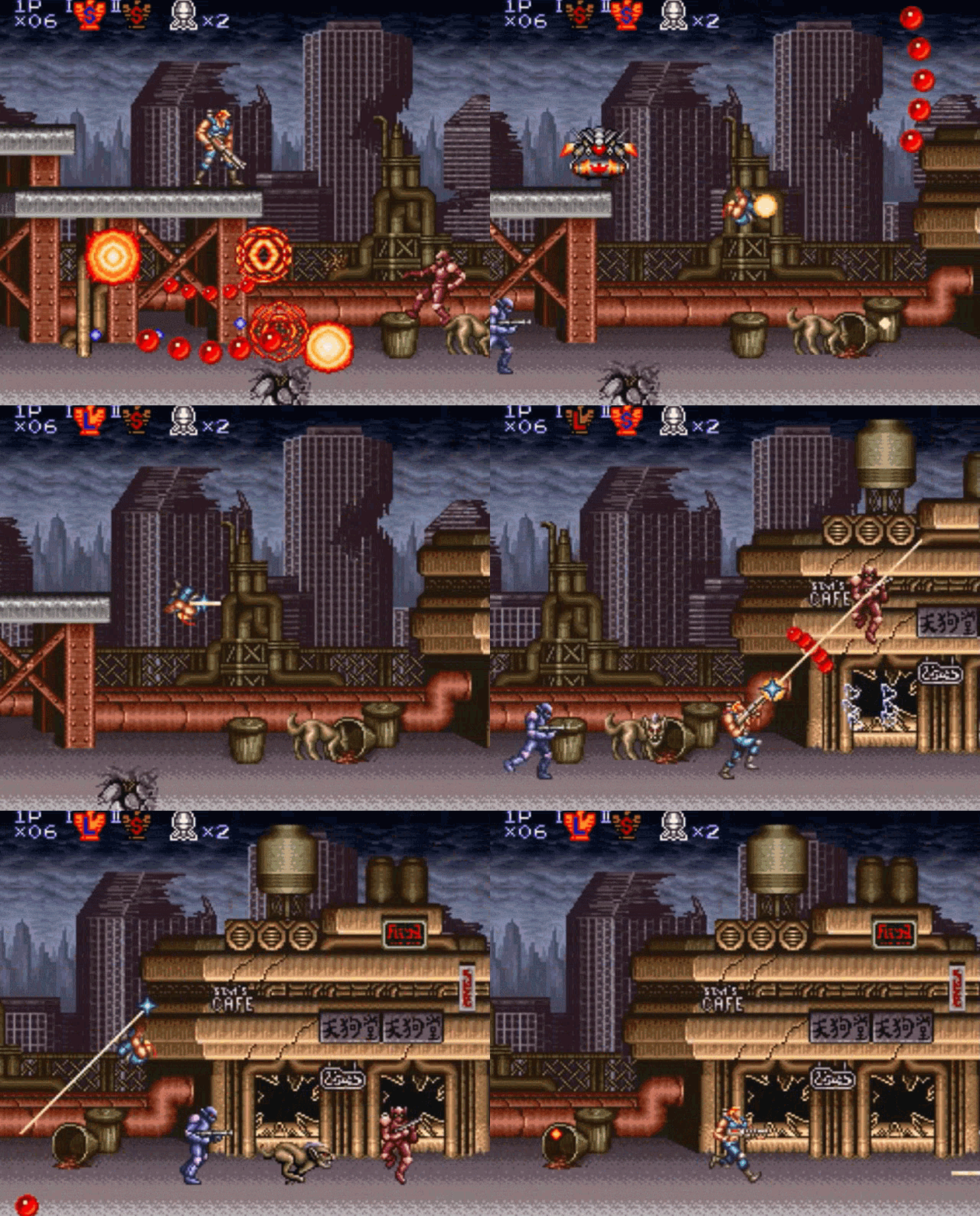
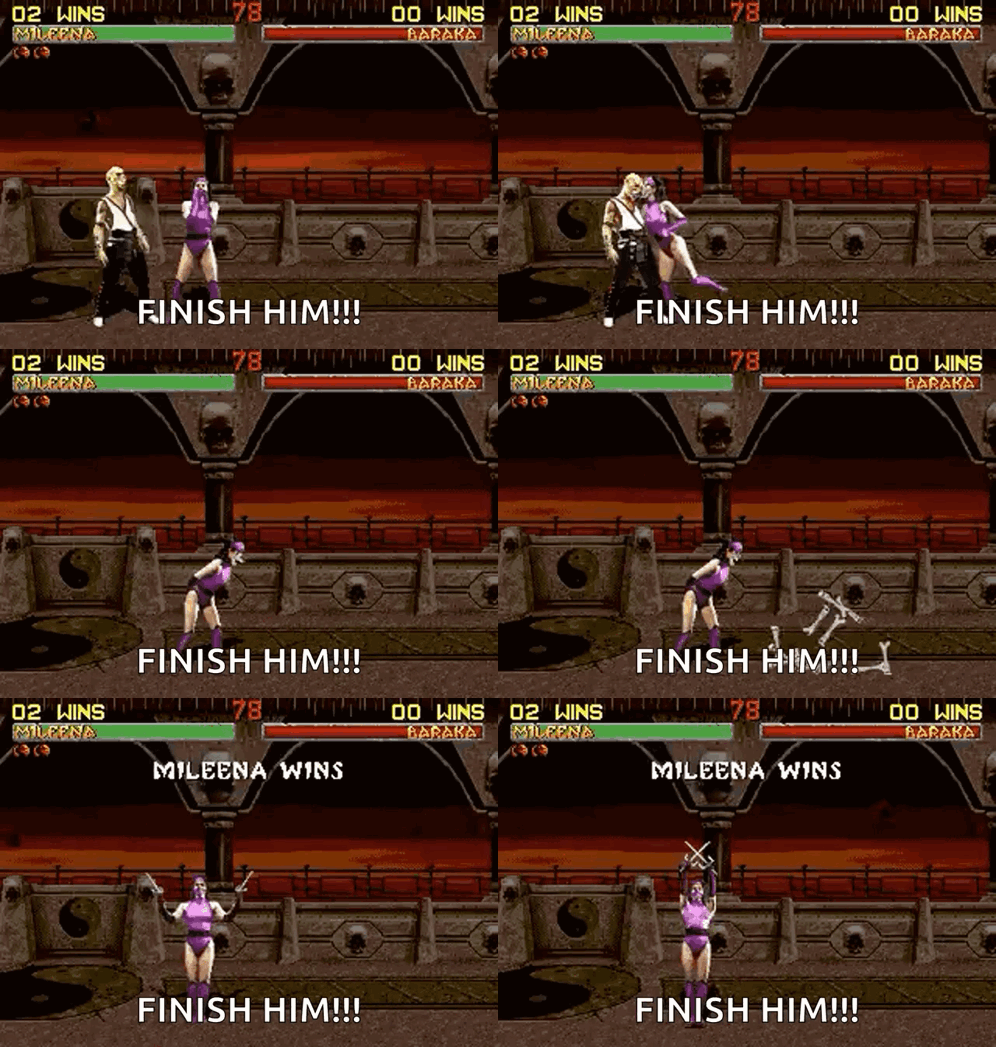
The R36S features dual analog sticks and full button sets, so you can play 2-player games on the same console—especially for arcade-style titles like Street Fighter II, Contra, or Double Dragon. Many emulators support split input, letting two players share the device.
🧩 External Controllers (Limited Support)
Some custom firmware like ArkOS may allow you to connect external USB controllers via the OTG adapter. This setup can enable couch co-op with a second player using a separate controller.
🌐 Online Multiplayer (NetPlay)
With a compatible USB Wi-Fi dongle, you can enable RetroArch NetPlay for online multiplayer. This works best for:
- NES, SNES, Genesis, and arcade games
- Games with minimal input lag
- Players using the same ROM, core, and RetroArch version
⚠️ Limitations
- 3D console multiplayer (like N64 or PS1) is not reliabl
 |
 |
 |
 |
 |
 |
 |
 |
 |
Why Choose HobbyistNirvana R36S Console Over Cheaper Clones?
If you’re seeing similar products at a lower price, here’s why this version delivers more value and less hassle:
| Feature | Cheaper Clones | This R36S Console |
|---|---|---|
| Wi-Fi Support | ❌ Incompatible or missing | ✅ Compatible with Wi-Fi dongle |
| NetPlay Functionality | ❌ Not supported | ✅ Fully supports RetroArch NetPlay |
| Warranty | ❌ No warranty or support | ✅ 6-month warranty + fast replacement |
| Firmware | ❌ Locked or outdated firmware | ✅ Ships with ArkOS, updatable & stable |
| Game Quality | ❌ Duplicates or broken games | ✅ Clean, curated, English-ready library |
| OTG Support | ❌ Missing or incompatible | ✅ OTG cable included for easy use |
| After-Sales Support | ❌ None | ✅ Friendly customer support via WhatsApp |
| Product Transparency | ❌ Misleading images/specs | ✅ Clear specs and honest listings |
Final Word: You’re not just buying a console—you’re investing in a smoother experience, trusted support, and genuine retro gaming fun without the frustration. ?
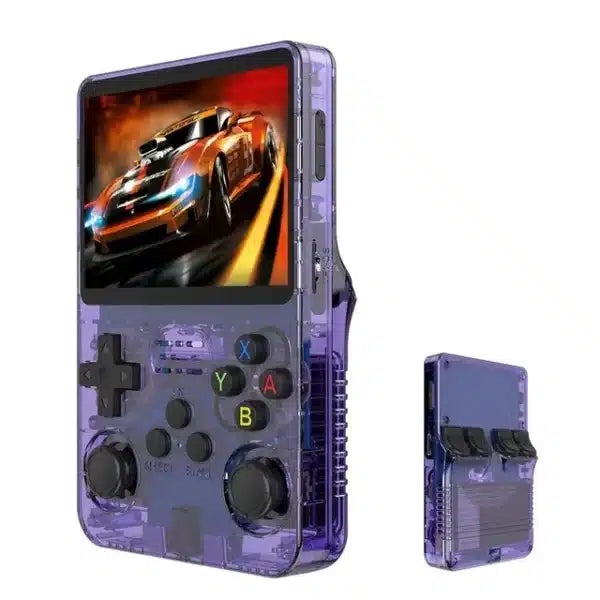
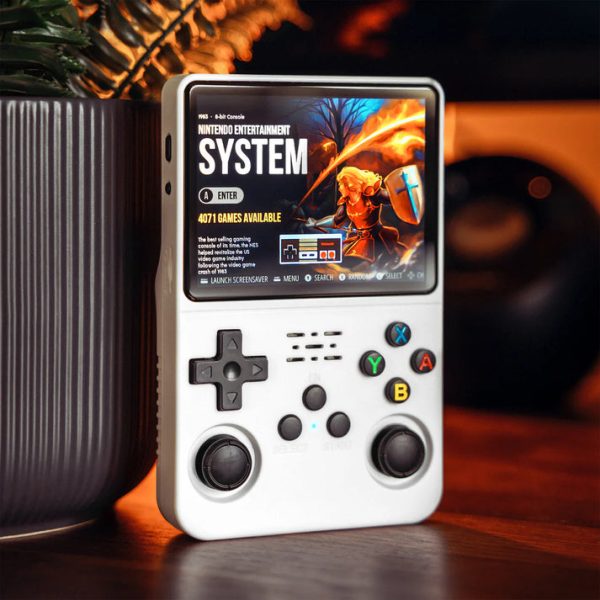
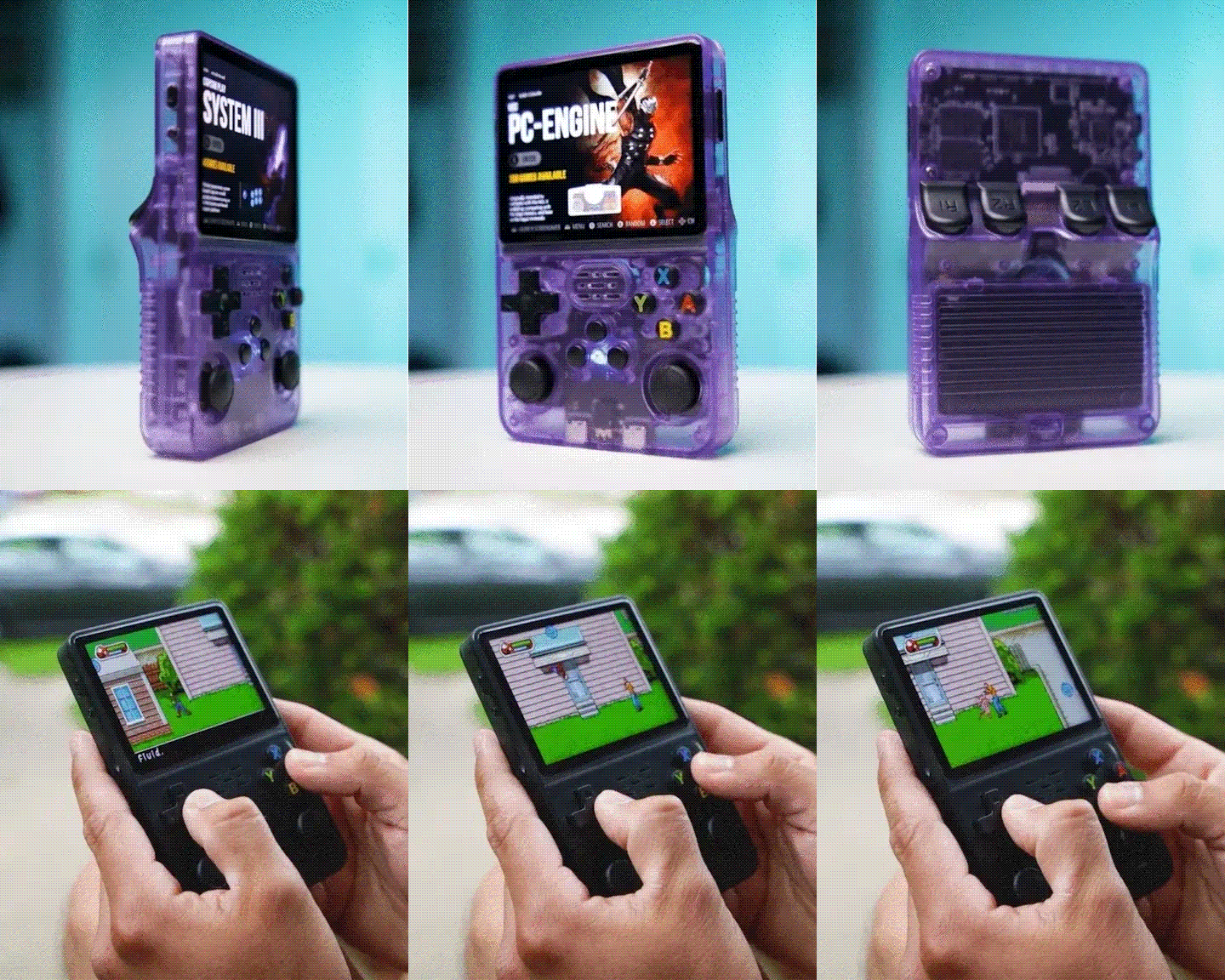
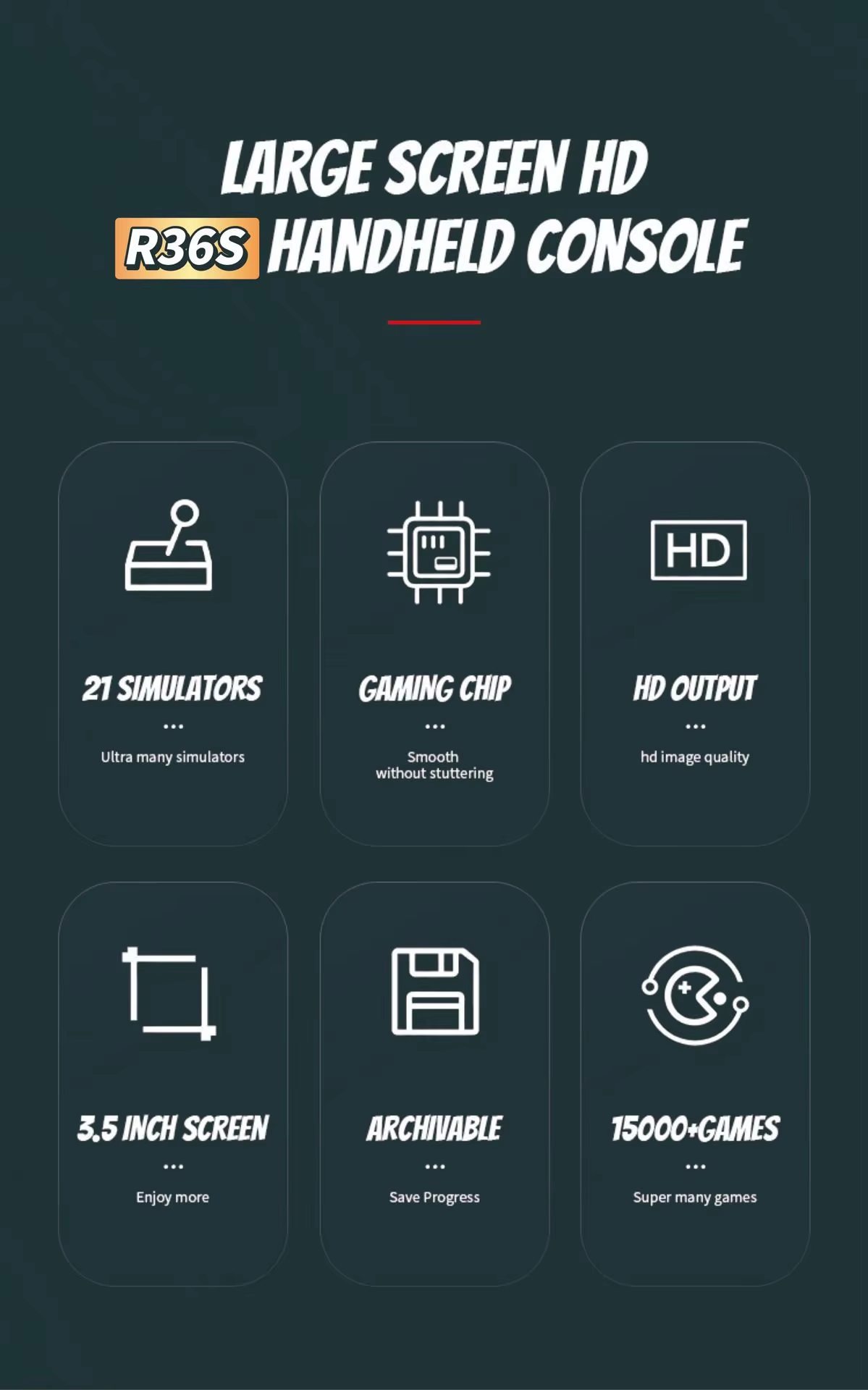
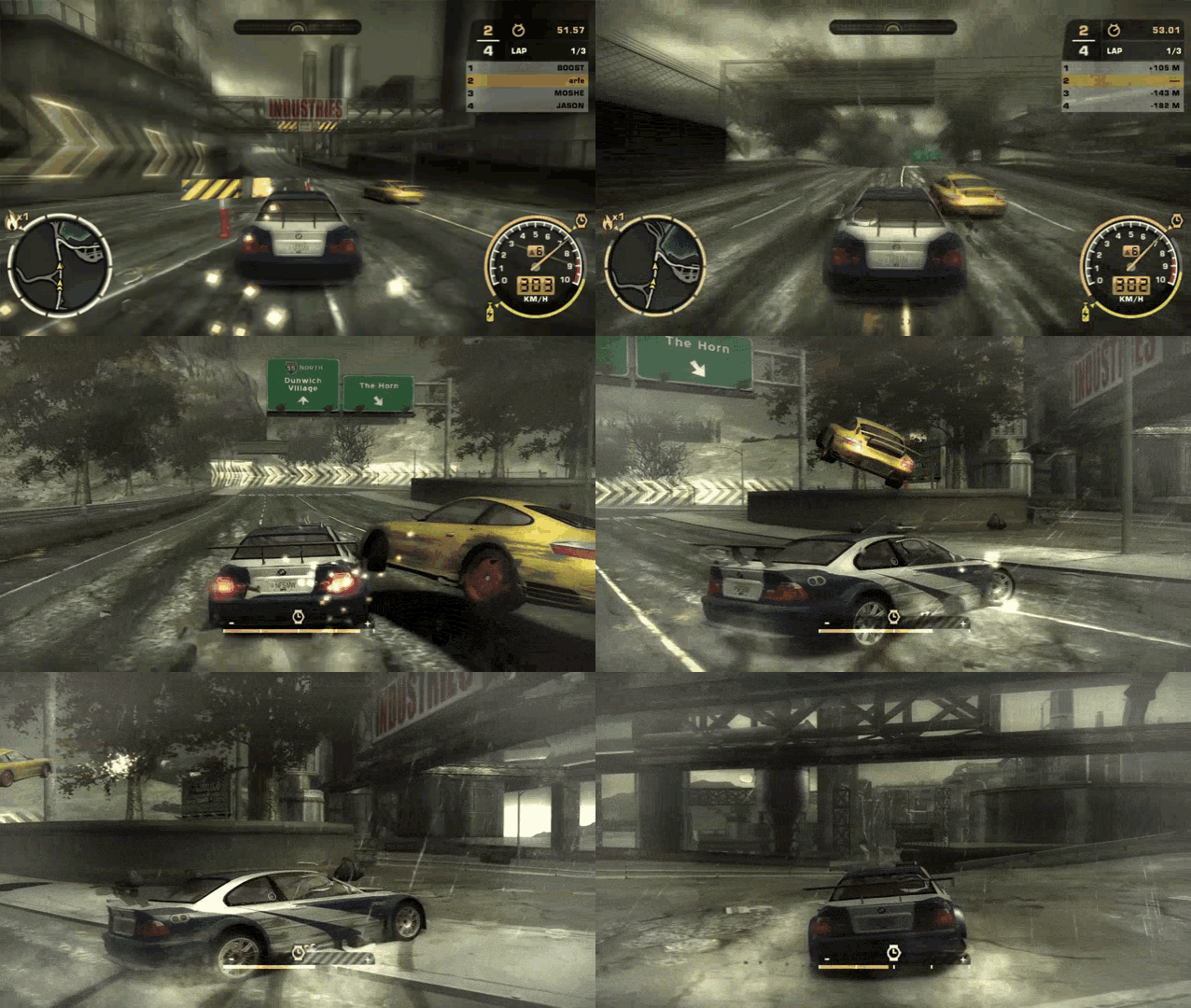
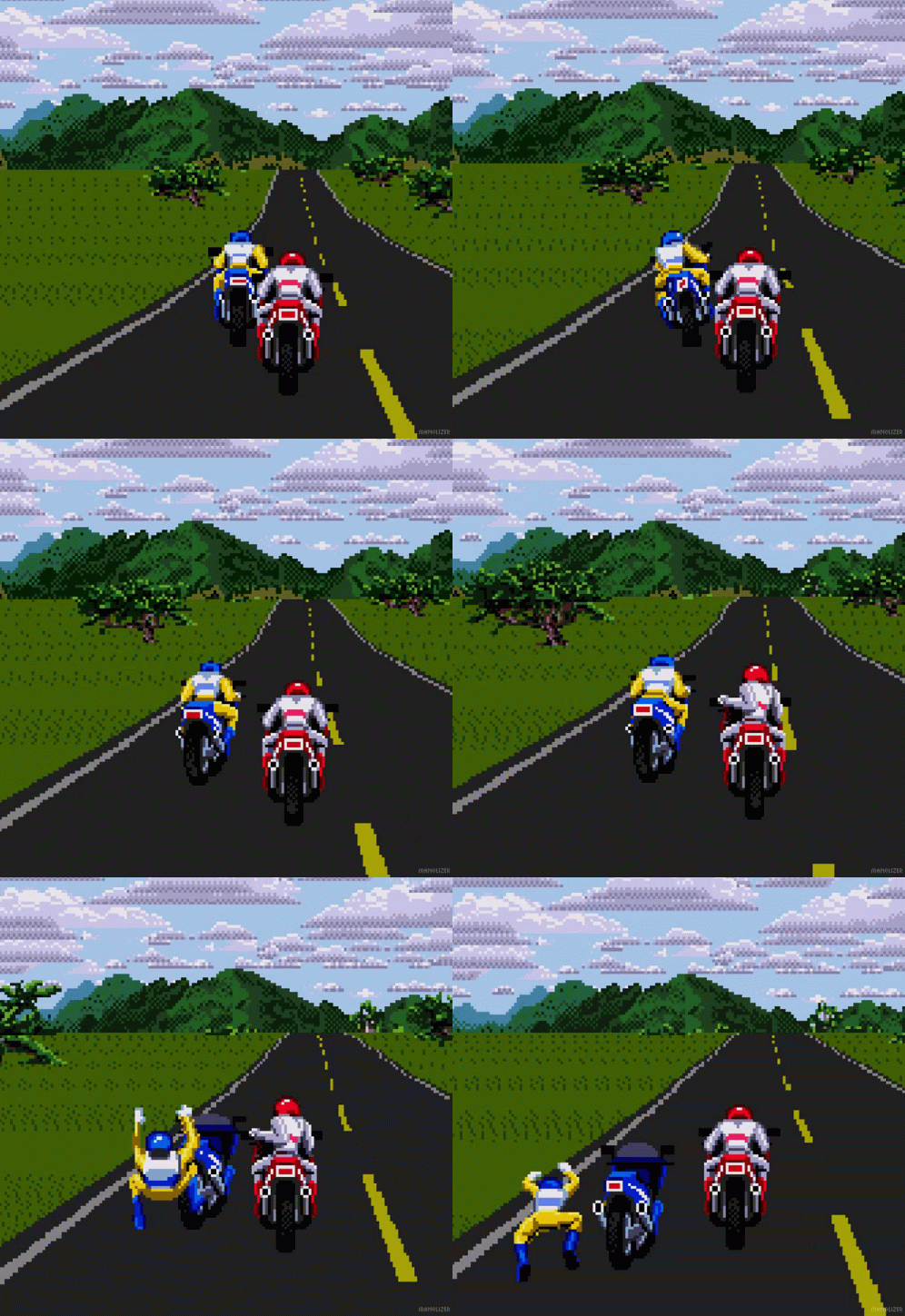
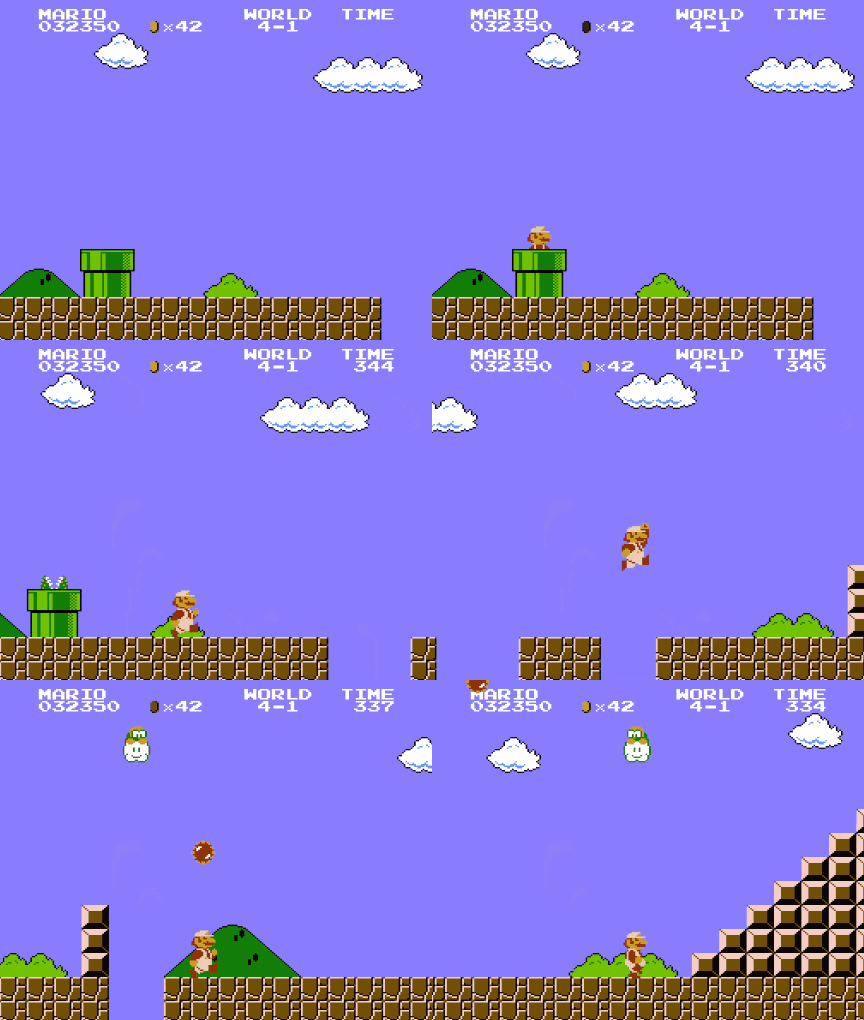
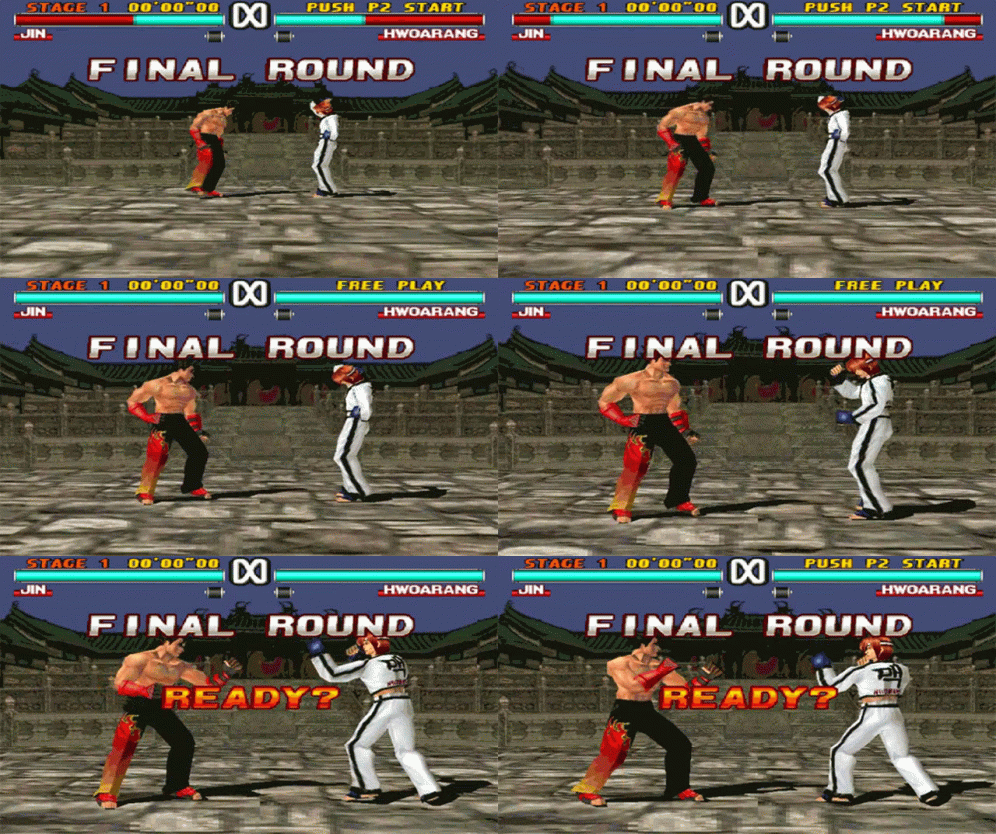
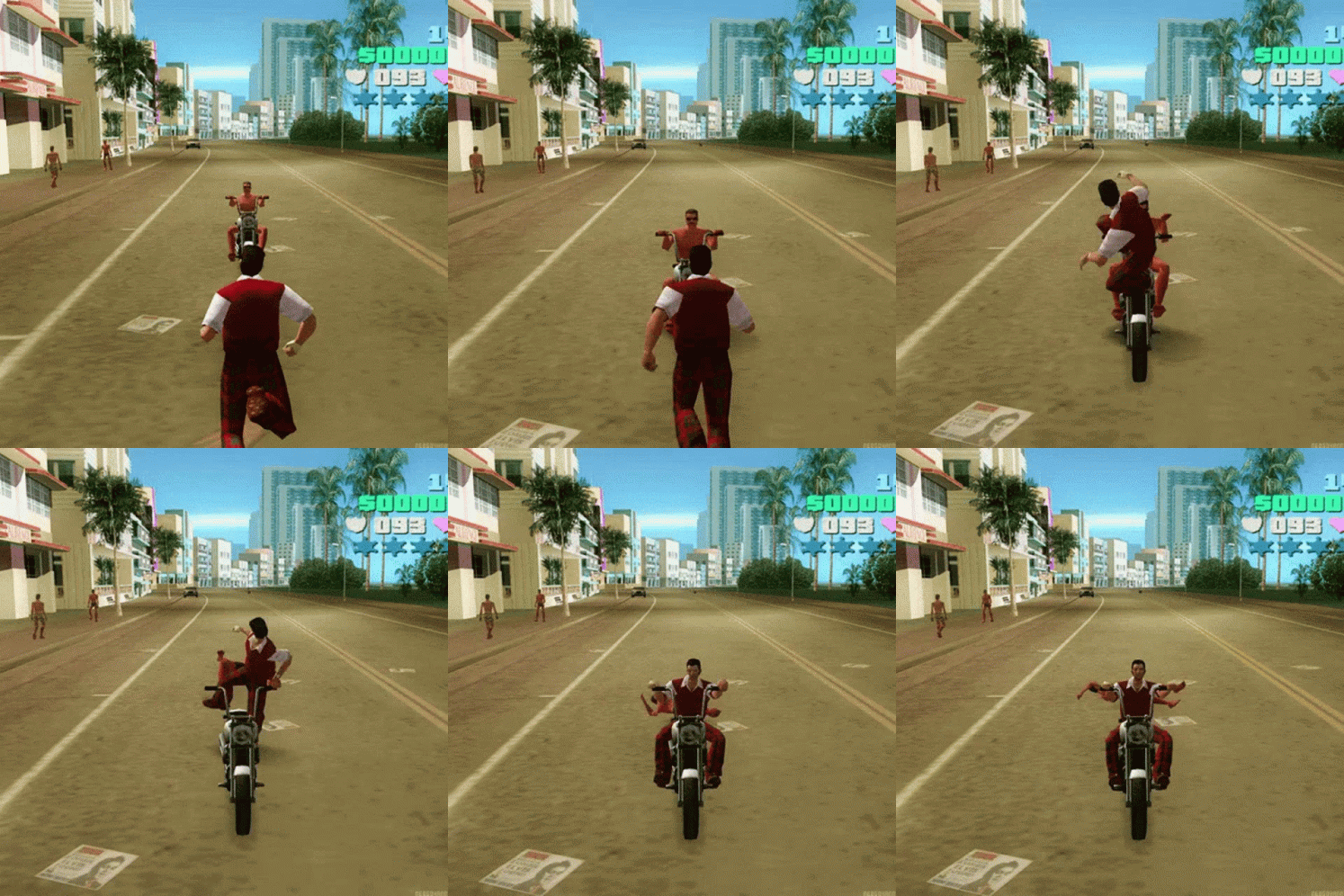
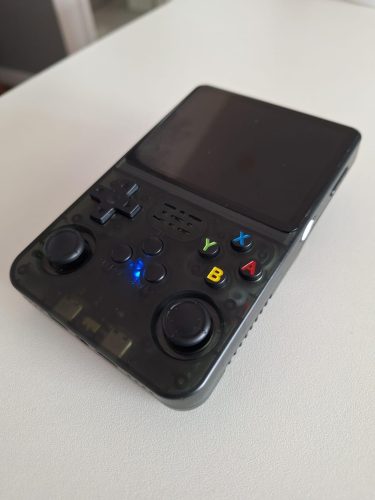
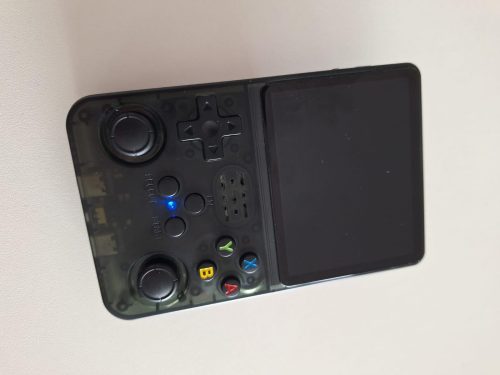
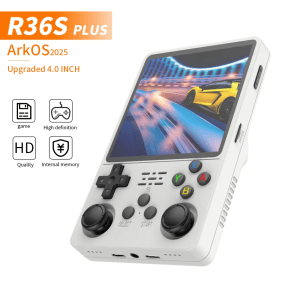
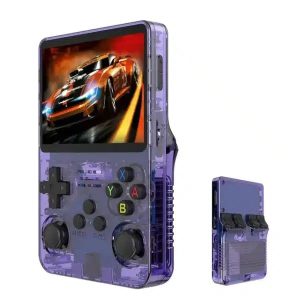
Step into the world of retro gaming with the R36S Handheld Retro Game Console! This sleek and stylish device is your gateway to over 15,000 + classic games. Whether you’re a fan of adventure, action, or racing, this console has something for everyone.
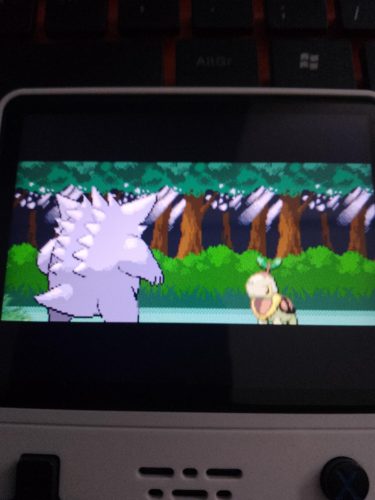
- Vibrant 3.5-inch IPS Display: Enjoy your favorite games in stunning clarity and color with a resolution of 640×480.
- Massive 64GB Storage: Never run out of space with enough room for thousands of games.
- Portable and Lightweight: Take your gaming on the go with this compact and easy-to-carry console.
- Customizable ArkOS Linux System: Save and load your games effortlessly with the exclusive ArkOS system.
- Long-lasting Battery: Play for up to 8 hours on a single charge with the powerful lithium polymer battery.
- Retro Arch NetPlay: Play with your friends on local network or on internet
- Dual Ram chip: Dual ram chip for seamless performance
Why You’ll Love It:
- Nostalgic Fun: Relive the golden age of gaming with classics from your childhood.
- Perfect Gift: Ideal for both kids and adults, making it a great gift for any occasion.
- TV Connectivity: Connect to your TV for a larger-than-life gaming experience.
Get ready to embark on a gaming adventure like no other with the R36S Handheld Retro Game Console. Order yours today and start playing!
Reviews
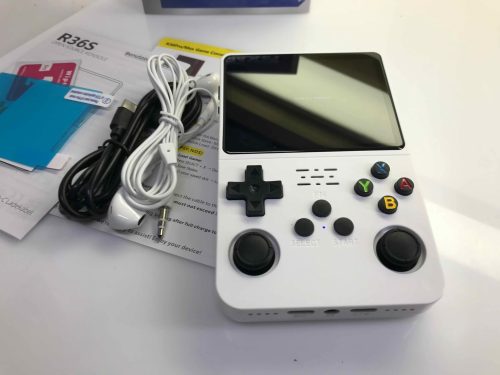
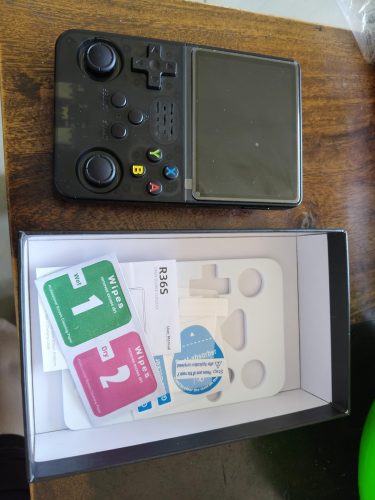
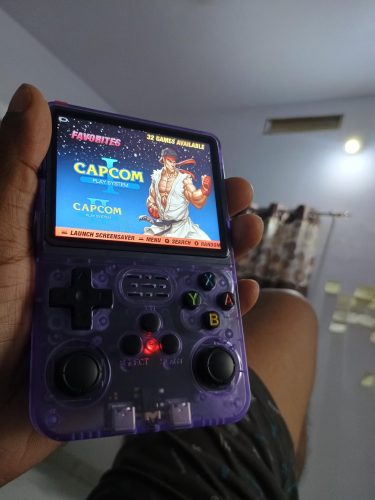
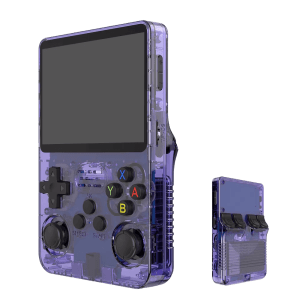
71 reviews for HN-R36S-Wifi Handheld Retro Game Console – 64GB, 3.5-inch Display with WIFI support