
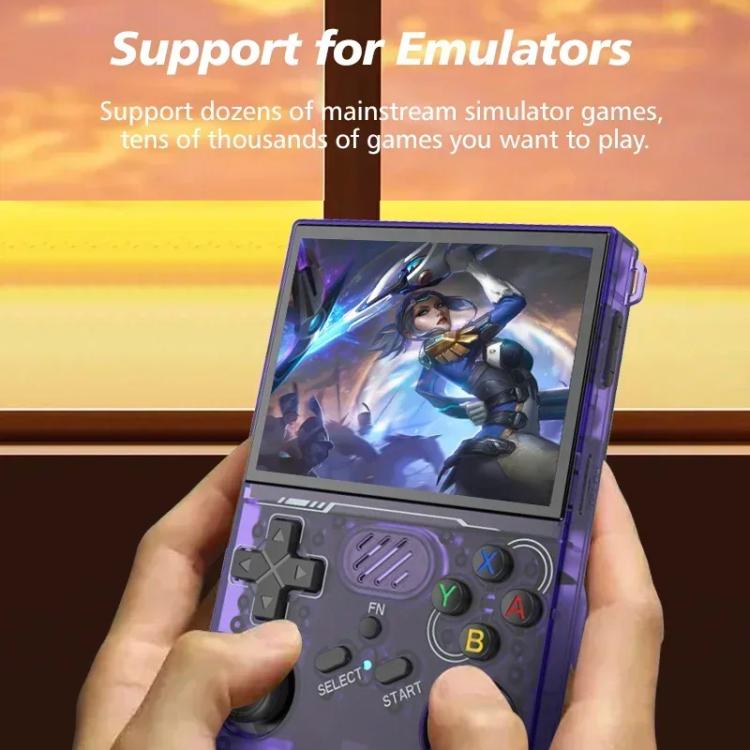
R36XX Complete Setup Guide: From Unboxing to Gaming
So you’ve got your hands on an R36XX — welcome to the world of retro gaming! Building on everything that made the R36S great, the R36XX adds Built-in WiFi connectivity, making wireless game transfers and online features a breeze. Whether you’re reliving childhood memories or discovering classics for the first time, this pocket-sized powerhouse is about to become your favourite companion.
In this guide, we’ll walk you through everything: unboxing, initial setup, adding games, utilising WiFi features, and getting the most out of your device.
What You’ll Need
- Your R36XX handheld or HN R36S WiFi 64GB Bundle
- A computer (Windows, Mac, or Linux)
- MicroSD card reader (if your computer doesn’t have one built-in)
- A high-quality microSD card (32GB–128GB recommended)
- Your legally-owned game files
- WiFi network details (SSID and password)
India-Specific: We recommend purchasing a SanDisk or Samsung microSD card from Amazon India or a trusted local retailer. Avoid suspiciously cheap cards from unknown sellers — counterfeits are common and can corrupt your data.
R36XX vs R36S: What’s New?
The R36XX includes everything you loved about the R36S, plus one major upgrade:
| Feature | R36S | R36XX |
|---|---|---|
| WiFi | External dongle required | Built-in WiFi |
| Wireless transfers | Limited | Native support |
| Online features | Requires adapter | Ready out of the box |
| RetroAchievements | Complex setup | Easy setup |
| Firmware updates | Manual download | OTA updates (firmware dependent) |
The built-in WiFi eliminates the need for a USB dongle, keeps the USB-C port free for charging while transferring, and provides a more stable wireless connection.
Ready to upgrade? Check out the HN R36S WiFi Handheld with 64GB for a complete package with built-in WiFi support.
Is Your R36XX Authentic?
Before diving in, let’s make sure you have the real deal.
Warning: The market is flooded with clones, especially from sellers offering prices significantly below market rate. These knockoffs often feature inferior TN screens (washed-out colours, poor viewing angles) instead of the vibrant IPS display on the authentic R36XX.
Signs of an authentic R36XX:
- Crisp 3.5″ IPS display with vivid colours
- Solid build quality with responsive buttons
- Built-in WiFi that connects without external adapters
- ArkOS or compatible firmware pre-installed
- Display resolution of 640×480
Signs of a clone:
- Dull, washed-out screen with poor viewing angles
- Creaky plastic and mushy buttons
- WiFi not working or requiring external dongle
- Random or incompatible firmware
- Often ships without proper packaging
Purchase from trusted retailers like HobbyistNirvana to ensure you receive an authentic device.
Step 1: Understanding Your R36XX Hardware
Let’s get familiar with what’s under the hood:
| Specification | Details |
|---|---|
| Processor | RK3326 Quad-core |
| RAM | 1GB DDR3 |
| Display | 3.5″ IPS, 640×480 |
| Battery | 3200mAh (4-6 hours gameplay) |
| Storage | Dual microSD slots |
| Connectivity | USB-C, 3.5mm audio, Built-in WiFi |
Key buttons to know:
- D-pad and analogue stick — Navigation and gameplay
- A/B/X/Y — Action buttons
- L1/L2, R1/R2 — Shoulder buttons
- Start/Select — Menu and system functions
- Function (FN) — Special hotkey combinations
Step 2: The Dual SD Card Setup (Recommended)
Your R36XX has two microSD slots. Here’s the smart way to use them:
Slot 1 (TF1): Operating System
Slot 2 (TF2): Games and saves
Pro Tip: Using two separate cards means you can upgrade or change your firmware without losing your game collection. Trust us — this saves headaches later!
Setting Up Your Cards
- Insert your OS card (the one that came with your R36XX or your custom firmware card) into Slot 1 (TF1)
- Insert your games card into Slot 2 (TF2)
- Power on the device — it should boot to the main menu
If you only have one card, that’s fine too. The device works with a single card containing both the OS and games.
Step 3: Connecting to WiFi R36XX Exclusive
One of the biggest advantages of the R36XX is its built-in WiFi. Here’s how to set it up:
Initial WiFi Setup
- From the main menu, navigate to Settings (or Network Settings)
- Select WiFi or Wireless
- Toggle WiFi to On
- Wait for available networks to appear
- Select your network from the list
- Enter your password using the on-screen keyboard
- Press A to confirm
Tip: Use the D-pad to navigate the keyboard and the analogue stick to quickly jump between sections. Press Start to switch between uppercase and lowercase.
Verifying Your Connection
Once connected, you should see:
- A WiFi icon in the status bar
- Your IP address in the network settings
- “Connected” status next to your network name
Troubleshooting WiFi
Can’t see your network?
- Ensure your router is broadcasting (not hidden)
- Move closer to your router
- Try toggling WiFi off and on again
- Check if your network uses 2.4GHz (5GHz may not be supported)
Connection drops frequently?
- Check for firmware updates
- Reduce distance from router
- Avoid interference from other devices
Step 4: Basic Navigation and Controls
Before adding games, let’s master the essential controls:
Navigating Menus
- Use the D-pad or analogue stick to browse
- Press A to select
- Press B to go back
Exiting Games (Important!)
This trips up many new users:
- Press Start + Select simultaneously
- Select Quit from the menu
- You’ll return to the game selection screen
Warning: Never use the power button to exit games! This can corrupt your save data and, in some cases, damage the SD card filesystem.
Shutting Down Properly
- Return to the main menu
- Navigate to Settings or Power
- Select Shutdown
- Wait for the screen to go completely dark before putting the device away
Step 5: Adding Games to Your R36XX
Now for the exciting part — loading up your game library! The R36XX offers multiple ways to add games.
Method 1: Wireless Transfer via WiFi (Recommended) WiFi Feature
This is where the R36XX shines! No need to remove SD cards.
Using Network File Transfer
- Ensure your R36XX is connected to the same WiFi network as your computer
- On your R36XX, navigate to Settings → Network
- Enable File Sharing or Samba (option name varies by firmware)
- Note the IP address displayed (e.g., 192.168.1.100)
On Windows:
- Open File Explorer
- In the address bar, type
\\192.168.1.100(use your R36XX’s IP) - Press Enter
- You should see shared folders including
ROMS - Copy your games to the appropriate system folders
On Mac:
- Open Finder
- Press
Cmd + Kor go to Go → Connect to Server - Enter
smb://192.168.1.100(use your R36XX’s IP) - Click Connect
- Copy games to the appropriate folders
On Linux:
- Open your file manager
- Enter
smb://192.168.1.100in the address bar - Browse and transfer files as needed
Method 2: Direct SD Card Transfer
Still works great when you need faster transfers for large files:
- Power off your R36XX completely
- Remove the games SD card (Slot 2) or your single SD card
- Insert the card into your computer’s card reader
- Open the card in File Explorer (Windows) or Finder (Mac)
You’ll see folders organised by system:
├── GBA/ (Game Boy Advance)
├── GBC/ (Game Boy Colour)
├── NES/ (Nintendo Entertainment System)
├── SNES/ (Super Nintendo)
├── PS1/ (PlayStation 1)
├── SEGA/ (Mega Drive/Genesis)
└── …and more
- Copy your game files into the appropriate folders
- Safely eject the card
- Insert it back into your R36XX
- Power on and enjoy!
Pro Tip: For PS1 games, use.bin + .cueor.chdformat. CHD files are compressed and save significant space — perfect if you’re working with a smaller SD card.
Step 6: WiFi-Enabled Features
The built-in WiFi on your R36XX unlocks several powerful features:
RetroAchievements Integration
Earn achievements while playing your favourite retro games!
- Create an account at retroachievements.org
- Go to Settings → RetroAchievements
- Enter your credentials
- Achievements will pop up during gameplay!
Scraping Game Metadata
Automatically download game artwork and descriptions:
- Navigate to any game list
- Press Start to open the menu
- Select Scrape
- Enjoy beautiful box art!
Cloud Save Backup
Some custom firmware options support cloud backup:
- Configure your cloud service in settings
- Enable automatic save backup
- Your progress syncs across devices
OTA Firmware Updates
Keep your R36XX up to date without SD card swapping:
- Go to Settings → System → Updates
- Check for available updates
- Download and install directly
Note: Feature availability depends on your installed firmware. ArkOS and similar custom firmware typically support most WiFi features.
Step 7: Updating Your Firmware
The firmware that ships with the R36XX is often outdated. Updating gives you:
- Better emulator performance
- Full WiFi feature support
- More customisation options
- Bug fixes and stability improvements
- Support for additional systems
Recommended Firmware Options
| Firmware | Best For |
|---|---|
| ArkOS | All-round performance, great community support, excellent WiFi integration |
| MinUI | Clean interface, simplicity-focused |
| GammaOS | Performance tweaks, Android-like experience |
Step 8: Optimising Your Experience
Adjusting Display Settings
- Enter a game and press Start + Select
- Navigate to Settings → Video
- Adjust:
- Brightness — Lower for better battery life
- Scaling — “Integer scaling” for pixel-perfect display
- Filters — Add CRT or LCD effects for nostalgia
Battery-Saving Tips
- Lower screen brightness to 50-60%
- Disable WiFi when not in use (saves significant battery)
- Use sleep mode for short breaks (quick press of power button)
- Keep volume at moderate levels
Creating Save States
Never lose progress again:
- During gameplay, press Start + Select
- Select Save State
- Choose a slot (you get multiple!)
- To load, follow the same steps and select Load State
Troubleshooting Common Issues
“My R36XX won’t turn on”
- Ensure the battery is charged (connect USB-C for at least 30 minutes)
- Try holding the power button for 10+ seconds
- Check that SD cards are properly inserted
“WiFi won’t connect”
- Verify your password is correct
- Ensure you’re using a 2.4GHz network
- Restart the device and try again
- Check if your router has MAC filtering enabled
- Update firmware for better WiFi compatibility
“Games aren’t showing up”
- Verify games are in the correct system folder
- Check file formats are supported (e.g.,
.gbafor GBA,.nesfor NES) - Refresh the game list from the system menu
- Some systems require BIOS files — we’ll cover this in another guide
“Screen looks washed out”
- This often indicates a clone device with a TN panel
- Try adjusting brightness and contrast in display settings
- If colours are significantly worse than product photos, you may have received a knockoff
- Purchase from trusted sellers like HobbyistNirvana
“Games run slowly”
- Some PS1 and N64 games are demanding
- Try overclocking in system settings (increases battery drain)
- Use optimised game versions (e.g., proper PS1 disc rips)
“Wireless transfer is slow”
- Move closer to your router
- Ensure no other devices are hogging bandwidth
- For very large transfers (10GB+), SD card transfer may be faster
Quick Reference Card
| Action | How To |
|---|---|
| Exit game | Start + Select → Quit |
| Save state | Start + Select → Save State |
| Shutdown | Main Menu → Settings → Shutdown |
| Add games (WiFi) | Enable file sharing → Transfer from computer |
| Add games (SD) | SD card → ROMS/[System]/ folder |
| Adjust brightness | FN + Volume or in-game menu |
| Connect WiFi | Settings → WiFi → Select network |
Why Choose the R36XX?
The R36XX represents the perfect evolution of the beloved R36S. With built-in WiFi, you get:
- Convenience — Transfer games without removing SD cards
- Features — RetroAchievements, scraping, and more work out of the box
- Future-proof — OTA firmware updates keep your device current
- Clean setup — No dangling USB dongles
Ready to Start Your Retro Gaming Journey?
Get your R36XX from HobbyistNirvana today!
Buy R36XX HN R36S WiFi 64GB Bundle