
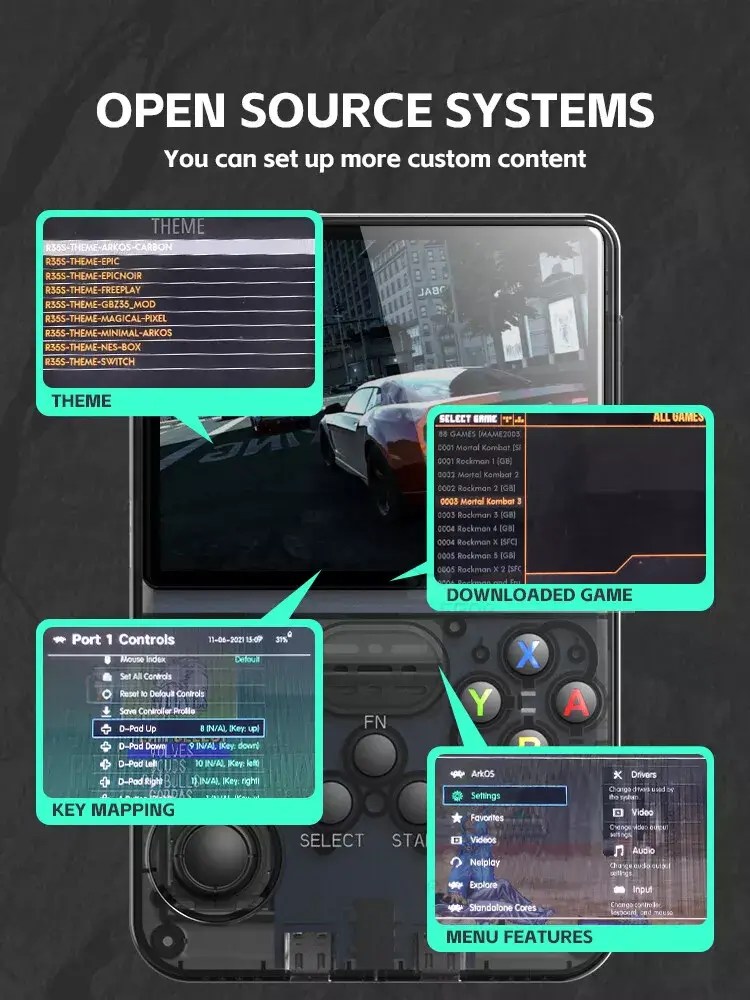
Retro gaming online has never been more exciting, especially with handheld devices like the R36S bringing classic titles into a modern, connected world. If you’ve just picked up an R36S or you’re thinking about it, you might be wondering how to get WiFi multiplayer working so you can battle friends in Mario Kart, race in F-Zero, or fight head‑to‑head in Street Fighter from anywhere.
This guide walks you through everything you need to know: setting up WiFi, configuring multiplayer, choosing emulators and cores, and making your online experience smooth and fun.
—
Why the R36S Is Perfect for Retro Gaming Online
The R36S is a compact retro handheld running Linux-based custom firmware (often JelOS, ArkOS, or similar). What makes it so appealing for retro gaming online is:
– Built-in WiFi for online play and updates
– Dual analog sticks, shoulder buttons, and a solid D‑pad
– Enough power to emulate platforms like NES, SNES, Mega Drive, PS1, N64, and more
– Community firmware support with multiplayer-friendly features
While it looks like a classic handheld, its capabilities are firmly modern—especially once you get WiFi multiplayer set up correctly.
—
Getting Your R36S Connected to WiFi
Before you can think about online matches, you need a stable wireless connection.
Step 1: Open the Network Settings
1. Power on the R36S.
2. From the main menu (EmulationStation or similar frontend), navigate to:
– Settings → Network Settings or
– System Settings → WiFi (labels may vary by firmware).
3. Make sure WiFi is toggled ON.
Step 2: Join Your WiFi Network
1. Select Scan for Networks.
2. Choose your home WiFi from the list.
3. Enter your password carefully (use the on-screen keyboard).
4. Wait for the connection confirmation.
Tips:
– Use the 2.4 GHz band if your router supports both; it generally offers better range for small handhelds.
– Keep the R36S relatively close to your router for the initial setup and testing.
Step 3: Confirm the Connection
Most firmware will show:
– IP address assigned (e.g., 192.168.x.x)
– Signal strength
– Connected SSID
If you see an IP address and no error, you’re ready for retro gaming online features.
—
Retro Gaming Online: What Multiplayer Options Do You Have?
Once you’re connected, there are two main paths to playing classics online:
1. Netplay via RetroArch or similar cores
2. Local wireless / ad‑hoc style multiplayer over your home network
Depending on your firmware and installed emulators, you might use one or both approaches.
—
Setting Up Netplay for Retro Gaming Online
Netplay lets you play emulated games over the internet as if you were sitting side by side. On the R36S, this is usually achieved through RetroArch.
Step 1: Launch RetroArch
1. From the main menu, locate the RetroArch app.
2. Open it, then go to Settings → Network to verify that online features are enabled.
Make sure:
– Network is enabled
– Your device still shows as connected to WiFi
Step 2: Configure Netplay Settings
Inside RetroArch:
1. Go to Main Menu → Online Updater (if available) and update:
– Core info files
– Assets
– Cores (if your firmware supports online updating)
2. Then go to Main Menu → Netplay:
– Set Nickname to something recognizable.
– Choose whether you want to Host or Join a session.
If your firmware uses a simplified frontend, some of these settings might be exposed in system menus rather than inside RetroArch, but the logic is the same.
Step 3: Hosting a Multiplayer Session
To host a game:
1. Load the core you want (e.g., SNES9x, Genesis Plus GX, PCSX-ReARMed).
2. Load the ROM you want to play.
3. Open the RetroArch menu (often by pressing Hotkey + X or similar).
4. Navigate to Netplay → Start Netplay as Host.
You’ll get:
– A Room ID or
– An IP address and port
Share that info with your friends so they can join.
Step 4: Joining a Friend’s Game
To join:
1. Launch the same core and the same ROM (must match exactly).
2. Open the RetroArch menu → Netplay.
3. Choose Connect to Netplay Host.
4. Enter the host’s IP/Room ID and port.
When everything is set up correctly, your game will sync and you’ll both see the same screen and play in real time.
—
Optimizing WiFi Multiplayer on the R36S
Online emulation can be sensitive to latency and packet loss. Here’s how to keep things smooth:
– Use wired at the router: If possible, connect your router to the internet via Ethernet so WiFi is only between the R36S and router, not multiple wireless hops.
– Play within your region: Host and guest should be geographically close for lower ping.
– Close background downloads: Avoid streaming 4K video or downloading large files on the same network while playing.
– Use stable cores: For online play, prefer well-tested cores like:
– NES: FCEUmm, Nestopia
– SNES: Snes9x
– Mega Drive: Genesis Plus GX
– PS1: PCSX-ReARMed
If you experience frequent desyncs, try different cores or slightly adjust the Netplay latency frames in RetroArch.
—
Game Recommendations for R36S Online Play
Not every retro title is ideal for online; some are turn-based, others demand frame-perfect timing. These usually work well:
– Fighting Games
– Street Fighter II Turbo (SNES)
– Marvel vs. Capcom (PS1 version)
– King of Fighters series (Neo Geo)
– Racing & Sports
– Mario Kart (SNES, GBA)
– F‑Zero (SNES)
– NBA Jam (SNES/Genesis)
– Co-op Classics
– Contra III (SNES)
– Teenage Mutant Ninja Turtles IV: Turtles in Time (SNES)
– Metal Slug series (Neo Geo)
Side-scrolling co-op and arcade-style games tend to be more forgiving of occasional lag than intense 1‑on‑1 fighters, so they’re a good place to start.
—
Playing With Friends: Practical Tips
To make your sessions smoother and more fun:
– Use voice chat on another device: Coordinate via Discord, WhatsApp, or similar on your phone or PC.
– Agree on settings beforehand: Same ROM version, region (USA/EUR/JPN), and core.
– Do a test run: Run a quick practice match before starting a serious run or tournament.
– Keep save states separate: Decide who controls save states; avoid both players loading saves mid‑session, which can cause confusion or desyncs.
—
Backing Up and Updating for Better Online Performance
Periodically:
– Backup your SD card (clone it via a PC) in case a setting or update breaks something.
– Update your firmware, if you’re comfortable doing so:
– New firmware versions often improve WiFi stability.
– They can also ship with better-optimized cores for netplay.
Always follow the specific update instructions for your firmware flavor (JelOS, ArkOS, etc.) to avoid bricking your device.
—
Bringing Classic Multiplayer Into the Modern Era
With a stable WiFi connection and a little configuration, your R36S becomes a powerful portal to retro gaming online. You’re no longer limited to local couch co‑op; you can run tournaments, co-op playthroughs, and nostalgic sessions with friends across town or across the world.
Whether you’re reliving childhood rivalries in Mario Kart or discovering 16‑bit fighters for the first time, proper WiFi multiplayer setup transforms the R36S from a simple emulator box into a full-blown social gaming machine.